Patta Chitta Not Working? Fix OTP, Invalid Input, No Record
There is no way to view Patta Chitta without an OTP on the e-Services portal. Every view page asks for a 10-digit mobile number and a 6-digit OTP before it shows the record. Most other failures come from three causes: an expired page session (“Invalid input”), an OTP that timed out, or details that don’t match the record.
Can You View Patta Chitta Without OTP?
No. View Patta / Chitta / FMB, View A-Register Extract, FMB Sketch, Verify Patta / Chitta, View Patta Order Copy and TSLR Extract all ask for a mobile number and an OTP. A website or app that promises Patta Chitta “without OTP” is not showing you the government record directly.
What the form needs is simpler than many people think:
- Any working mobile number. The form asks only for a 10-digit number to receive the OTP. It doesn’t ask for the land owner’s number, so a family member’s phone works.
- An Indian number starting with 6, 7, 8 or 9. Anything else, or a number of one repeated digit, gets “enter valid mobile no”.
- The OTP within 2 minutes. A countdown starts at 2:00 when the OTP is sent.
OTP Not Received
After you click Get OTP, the page shows “OTP has been sent to XXXXXX” followed by the last four digits of your number. If no SMS arrives:
- Check those last four digits. If they are wrong, reload from the portal home page and enter the number again.
- Wait for the 2:00 countdown to end. The OTP box is disabled when it reaches zero and the button changes to Resend OTP. You can’t resend before then.
- Click Resend OTP once. Type the new OTP and click Confirm OTP.
- Wait for the confirmation. The portal shows “Your OTP has been verified.Please click Submit button after clicking OK”. Click OK, then Submit.
If you keep resending, the portal stops sending. “You Have done maximum attempts for this number” means that number has hit its limit. Try later, or use another mobile number. Also check that the phone has signal and that a spam filter isn’t hiding the SMS.
Error Messages and What They Mean
These messages come from the portal itself. Match yours to find the fix.
| Message on screen | What it means | What to do |
|---|---|---|
| Invalid input | The page’s session check failed. The district and taluk boxes reset | Go back to the portal home page and open the service again |
| INVALID ACCESS TO THE SITE! Login from Home Page | You opened an inner page directly (a bookmark, a shared link, a search result) | Open the portal home page and click the service from there |
| enter valid mobile no / Invalid Mobile no | The number isn’t a valid 10-digit Indian mobile | Re-enter the 10-digit number |
| Invalid OTP..Please enter valid OTP | The OTP was typed wrong or is old | Type the latest OTP; if the timer ended, use Resend OTP |
| Invalid OTP..your limit has been exceeded | Too many wrong OTP tries | Stop and try again later |
| You Have done maximum attempts for this number | Too many OTP requests for one number | Try later or with another number |
| Please Enter Valid Patta Number | Patta numbers are 1 to 7 digits and can’t start with 0 | Check the number on your old patta |
| Please Enter Valid Survey Number / Please Enter Valid Subdivision Number | The format isn’t accepted | For 24/2, enter 24 as survey number and 2 as sub-division |
| Please select landtype option | This taluk has natham land, so you must choose Rural or Natham | Pick the land type that matches your land |
| Server error. Please try again later. / Error Occured not connected | The portal’s server didn’t respond | Wait and try again; nothing is wrong with your details |
Why “Invalid Input” Keeps Coming Back
Each time you open a service from the home page, the portal gives that page a session code. The page sends this code with your search. If the code is missing or no longer accepted, you see “Invalid input” and the form clears.
That’s why these habits can cause it:
- Opening a saved link, or a link from WhatsApp or Google, instead of the home page. The link carries an old session code.
- Going back to an old tab or a reloaded inner page, which can carry a code that is no longer accepted.
The fix is the same each time: close the tab, open eservices.tn.gov.in/eservicesnew/index.html, and click the service again.
No Record Found, or Village Not in the List
When the portal opens but your record doesn’t appear, the search details usually don’t match how the land is recorded.
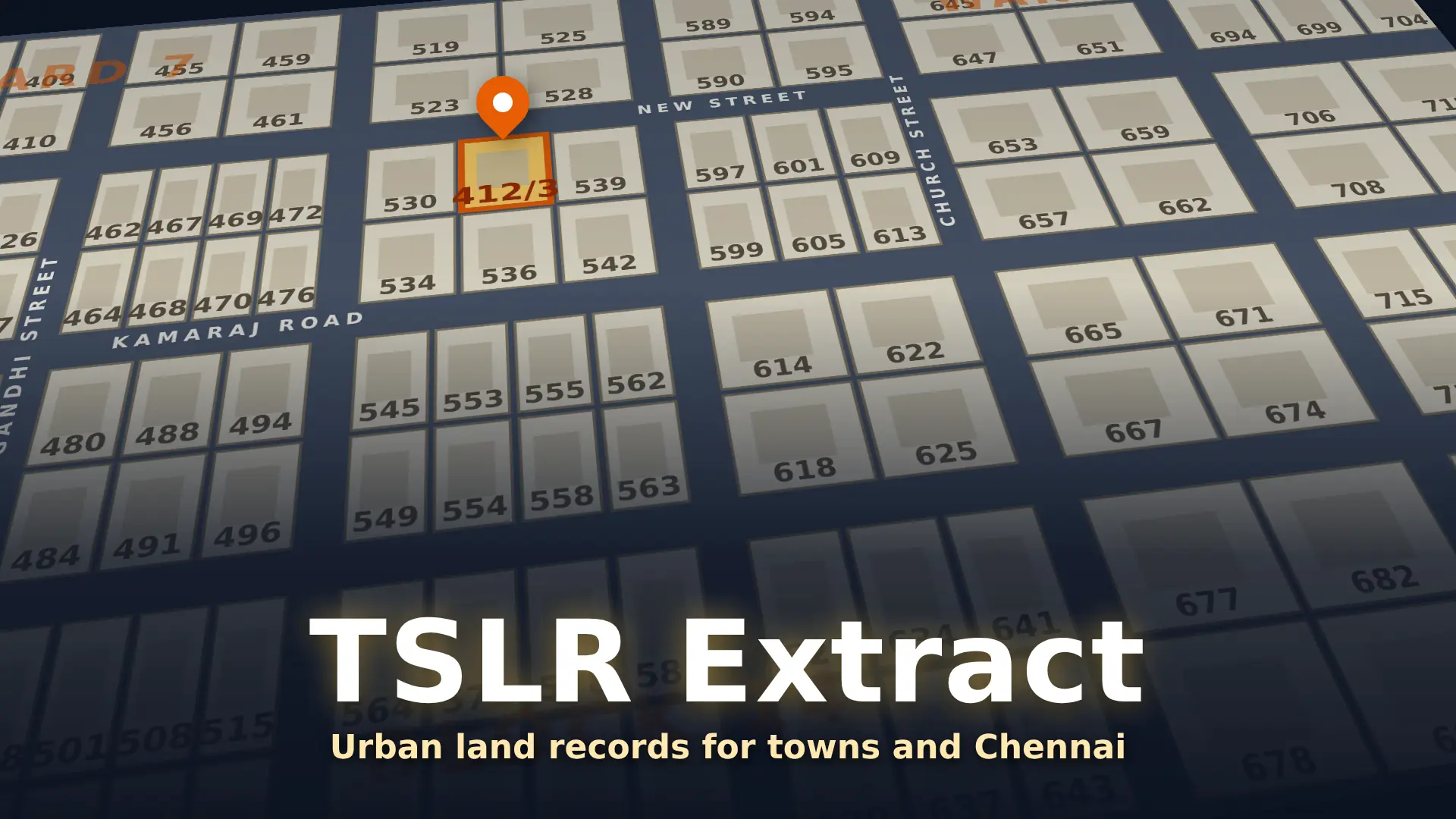
- Town land. In a town-surveyed municipality or corporation, the record is under TSLR Extract, searched by ward, block and town survey number. Our page on urban land records explains when that applies.
- Wrong land type. In taluks that ask for Rural or Natham, a natham house site won’t show under Rural, and the other way round.
- Wrong sub-division. On the FMB Sketch and A-Register pages, a survey number with no sub-division needs “-“. On TSLR Extract, the portal asks for 0 instead.
- Old survey number. A number from an old deed may have changed. Check the correlation statement on the e-Services home page.
- Searching by name. The portal’s Help page lists “Owner Name”, but the view form has only Patta Number and Survey Number. A name-wise search isn’t possible there, so find one of the two numbers first.
- Village missing from the list. Check the taluk first. If the village is still not listed, ask the VAO or taluk office which taluk and village name the records use.
If the details are right and the record still doesn’t show, the land record itself may need updating. The VAO and Tahsildar handle that; the portal can’t add a missing record.
When the Whole Website Is Down
If the home page itself won’t load, or every service fails with a server error, the problem is on the portal’s side.
- Wait and retry. Try again after some time, starting from the home page.
- Use a supported browser. The portal says it is best viewed in Google Chrome 45+, Mozilla 38+ and Edge.
- Turn off the browser’s translate option. The portal warns that extracts carry names in Unicode Tamil, and translation can change them.
- Report a lasting problem. The Commissionerate of Survey and Settlement lists helpline 1100 and email dir-sur@nic.in on the portal’s Contact Us page. The portal also has a Feedback page.
Once it works again, the normal steps to view patta chitta online are the same as before.
பட்டா சிட்டா OTP வரவில்லையா?
e-Services தளத்தில் OTP இல்லாமல் பட்டா சிட்டா பார்க்க முடியாது. 6, 7, 8 அல்லது 9-ல் தொடங்கும் எந்த 10 இலக்க கைபேசி எண்ணையும் பயன்படுத்தலாம். OTP அனுப்பிய பின் 2 நிமிட நேரம் உள்ளது; அது முடிந்த பின் “Resend OTP” அழுத்துங்கள். “Invalid input” என்று வந்தால், முகப்புப் பக்கத்திற்குச் சென்று சேவையை மீண்டும் திறங்கள். பதிவு கிடைக்கவில்லை என்றால், நகரப் பகுதியா (TSLR), நத்தமா அல்லது ஊரகமா என்பதைச் சரிபாருங்கள்.
Quick Answers
Does the OTP have to go to the land owner’s phone?
No. The form takes any valid 10-digit mobile number and doesn’t ask whose number it is.
How long is the OTP valid?
The page gives you 2 minutes. When the countdown ends, the OTP box locks and you need to click Resend OTP.
Why does the FMB sketch not open after OTP?
The FMB Sketch page has its own form and OTP. Check the sub-division: use “-” when the survey number has none. After Submit, click View FMB to open the sketch.
Can an agent view it for me without my OTP?
Anyone can view a record with their own mobile number and OTP. Never share an OTP sent to your phone with an agent or website.